
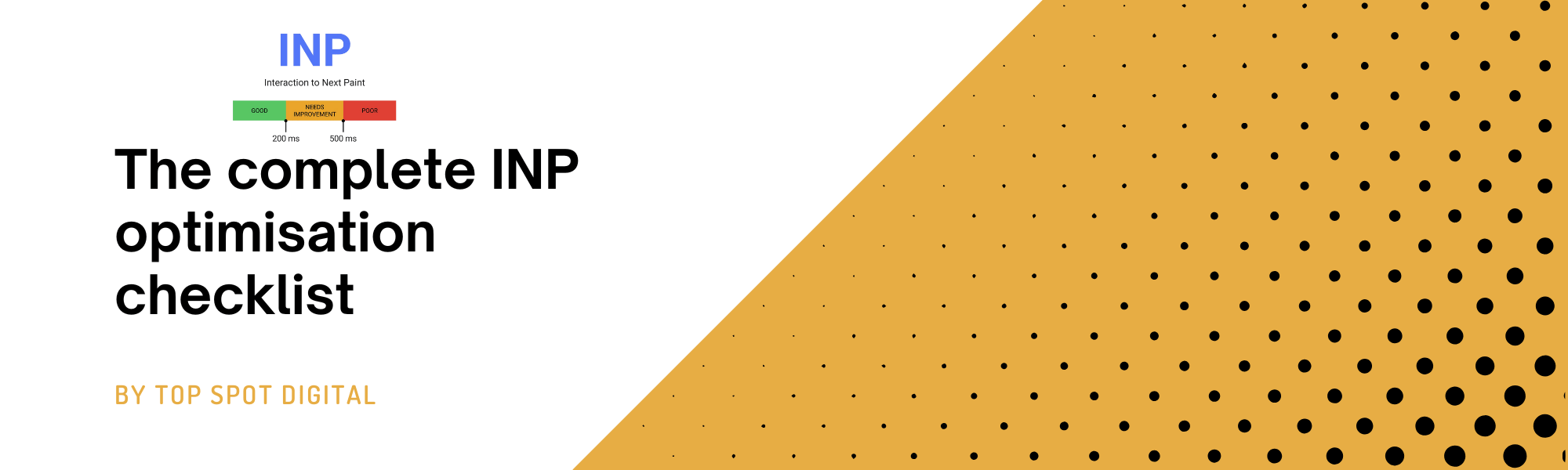
INP measures how quickly the page responds when people tap, click, or type. Good INP is 200 ms or faster at the 75th percentile. Use this action list to audit, fix JavaScript long tasks, ship interaction ready patterns, then QA in production.
Audit
What INP is and the targets
- Good: 200 ms or faster at p75
- Needs improvement: 200–500 ms
- Poor: above 500 ms
- Aim to improve the slowest interactions first on your highest traffic templates
Where to find your INP
- Search Console Core Web Vitals report for field data
- PageSpeed Insights with your URL for lab plus field
- Chrome DevTools Performance panel set to analyse interactions
- Real user monitoring using a Web Vitals script or your analytics tool
Triage the worst offenders
- Templates with high traffic and poor INP
- User journeys with many taps or inputs, for example filters, add to basket, checkout
- Devices with weaker CPUs and slow networks
- Pages with many third party scripts and visual effects
Kill JavaScript long tasks
Identify long tasks
- Record in Chrome DevTools Performance panel
- Look for main thread tasks over 50 ms
- Expand them to find heavy functions, endless loops, large JSON parses, big libraries
Split and schedule work
- Break large functions into microtasks
- Use requestAnimationFrame to update the UI between chunks
- Use setTimeout or scheduler.postTask to yield to the main thread
- Move heavy logic to a Web Worker when it does not touch the DOM
- Avoid synchronous JSON.parse on huge blobs. Stream or slice if possible
- Defer non critical initialisation until after first interaction
Reduce JavaScript shipped
- Remove unused libraries and UI kits
- Replace moment style date libraries with tiny formatters
- Tree shake and code split by route and component
- Prefer CSS for animations and effects
- Limit hydration work. Hydrate only components that need it
Tame third parties
- Remove tags you do not need
- Load third parties after user interaction if possible
- Use async and defer on scripts
- Set a budget for third party cost per page
Interaction ready patterns
Instant feedback on tap
- Show a pressed state within 50 ms
- Use skeletons, spinners, or optimistic UI when actions take time
- Disable buttons while requests are in flight
Inputs that feel fast
- Debounce search and filter inputs at 150–250 ms
- Use requestIdleCallback or a small setTimeout to delay heavy handlers
- Use passive event listeners for touch and wheel events
- Add inputmode and type attributes to trigger the right mobile keyboard
- Remove double tap delay with a correct viewport meta
Layout and paint hygiene
- Prevent layout shifts with width, height, or aspect ratio on media
- Use content-visibility: auto on deep components that are off screen
- Avoid forced synchronous layout reads inside loops
- Keep sticky headers and complex effects lightweight
Navigation and routing
- Prefetch likely next pages on hover or idle
- Use the Speculation Rules API or framework prefetch for same origin routes
- Keep route level code splitting small and cacheable
- Avoid blocking modals and popovers that attach heavy listeners at once
Media and fonts
- Serve modern images with srcset and sizes
- Do not lazy load the hero image
- Use preload for the main font file and limit variants
- Use font-display swap so text shows quickly
CMS specific fixes
WordPress
- Use a lean theme. Avoid heavy page builders on core templates
- Remove unused plugins. Replace multi use suites with single purpose tools
- Defer or async front end plugin scripts where safe
- Inline critical CSS for above the fold. Preload the hero image
- Use a performance plugin only for caching and minify, not for piling on features
- Host fonts locally. Limit to two families and few weights
Shopify
- Audit installed apps. Remove ones that inject render blocking scripts
- Use theme app extensions instead of script tags where possible
- Defer non essential app widgets below the fold
- Optimise sections and blocks. Avoid complex loops in Liquid for large collections
- Preload hero image and the main stylesheet
- Limit animations created by the theme editor
Webflow
- Reduce page load interactions and scroll effects
- Group animations to fewer timelines
- Turn off unused Webflow components that load scripts
- Compress and resize images in the asset manager
- Export and self host fonts with only required subsets
React and Next.js
- Use React Server Components for static or server driven UI
- Mark client components with use client only when needed
- Use dynamic import for heavy widgets and load on interaction
- Use next/script with strategy=”afterInteractive” or “lazyOnload” for non critical scripts
- Use the Next Image component with priority on the hero only
- Skip client state for simple reads. Favour server actions or simple fetches
Component recipes
Menus and nav
- Keep menus pure CSS when possible
- When using JS, attach listeners only to the toggle button
- Prefetch likely next links on hover or when idle
Carousels and sliders
- Avoid auto playing carousels
- Use CSS snap points before heavy slider libraries
- If a library is needed, import it dynamically on visibility
Forms and validation
- Validate on blur and submit, not every keystroke
- Use native browser constraints where possible
- Defer complex lookups until the user stops typing
Accordions and tabs
- Toggle with CSS details or a tiny JS handler
- Only render visible panels initially
- Use aria attributes for accessibility without heavy frameworks
Filters and search
- Debounce at 150–250 ms
- Use Web Workers for heavy client filtering
- Render results in chunks to keep the thread free
Modals and overlays
- Avoid global listeners on open
- Trap focus with a small utility, not a giant library
- Unmount modal content on close
Network and delivery
Preload and priority
- Preload the hero image and critical CSS
- Use fetchpriority=”high” on the hero image
- Use modulepreload or rel=preload for key bundles
Caching and compression
- Cache static assets with far future expiry and version with hashes
- Enable brotli or gzip on the server
- Serve HTTP/2 or HTTP/3 for better multiplexing
Data fetching
- Avoid large JSON blobs on first view
- Paginate and stream where supported
- Cache API responses at the edge if content is public
QA steps
In development
- Run Lighthouse in timespan mode while clicking through key flows
- Record a DevTools Performance trace and mark slow interactions
- Fix the top five long tasks then retest
In staging
- Test on a mid range Android and an entry level laptop
- Throttle CPU by 4x in DevTools to simulate weaker devices
- Validate that all interactive elements show feedback inside 50 ms
In production
- Monitor INP at p75 with field data
- Send Web Vitals to your analytics and create alerts for regressions
- Compare INP before and after each release on top templates
Rollout plan
Days 0–14
- Gather INP field data and identify the worst templates
- Remove at least three third party scripts and unused libraries
- Preload hero image and main stylesheet on top pages
Days 15–30
- Split the heaviest JS by route and by component
- Implement debounced handlers for filters and search
- Add instant feedback states to key buttons and inputs
Days 31–60
- Move heavy processing to a Web Worker where possible
- Switch to server components or server rendering for static parts
- Set up RUM to track INP per template and device class
Quick reference checklist
- INP target 200 ms or faster at p75
- No main thread tasks above 50 ms on user action
- Instant visual feedback on tap
- Debounced inputs and lightweight listeners
- Prefetch next routes and assets
- Preload hero image and fonts used above the fold
- Minimal third party tags with async or defer
- Field monitoring with alerts for regressions
FAQ
What is INP
A Core Web Vitals metric that tracks how quickly your page responds to user interactions like taps, clicks, and key presses across the visit.
What influences INP the most
Long JavaScript tasks on the main thread, heavy third party scripts, and handlers that do too much work per interaction.
How do I know which interaction is slow
Use Chrome DevTools Performance panel. Interactions are marked on the timeline. Expand long tasks to find functions causing the delay.
Can good INP hurt design quality
No. You can keep rich UI by scheduling work, moving heavy logic to workers, and loading features only when people need them.
Is INP only a developer concern
No. Editors and marketers affect INP through app choices, plugins, animations, and media size. Everyone should follow this checklist.